Users and roles
Last reviewed: 2026-05-24
Every person who touches your workspace is a user, and every user has a role that decides what they see. Both live on the admin-only Users page at /users. Signers don't see this page — only admins manage the team.
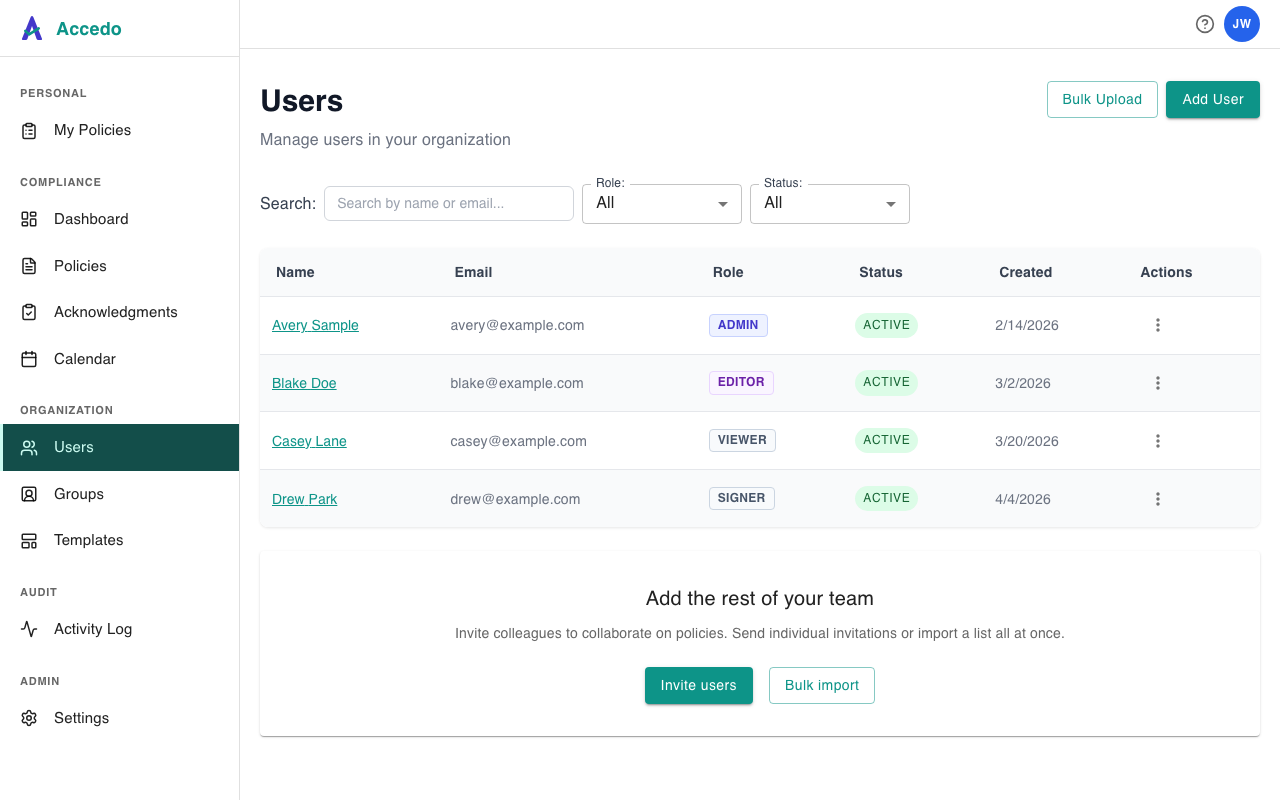
What each role can do
Two access tiers matter in practice: admin and signer. The Add User dialog also exposes Editor and Viewer as variants of admin — they have the same access today but carry a distinct badge in the user list, useful for marking intent inside large teams.
- Admin
- Full access. Uploads and edits policies, assigns work, runs Dashboard and Acknowledgments reports, manages users and groups, reads the Activity Log, and reaches every section of Settings including Billing, Digest, and SSO.
- Signer
- Signs in to a focused portal at
/signerthat lists only their own pending and completed assignments. They cannot see other people's work, the policy library, dashboards, or workspace settings. They do reach the Account section of Settings to manage their own profile, password, and notification preferences.
Adding a user
From Users, click Add User, fill in first name, last name, email, pick a role, and optionally tick any groups they should belong to. The new row appears immediately. What happens next depends on the role:
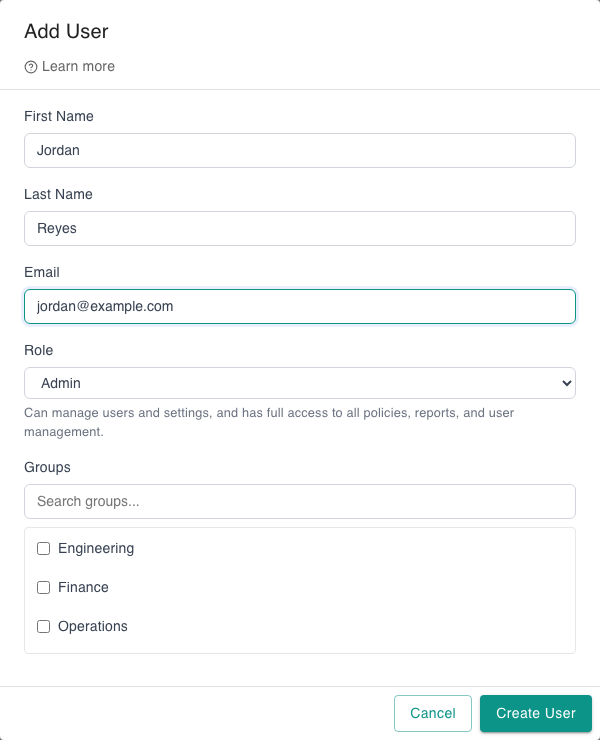
- Admin — Accedo creates a sign-in account and emails them an invitation with a temporary password. They sign in to your subdomain (e.g.
acme.yesaccedo.com), set a permanent password, and land on the Dashboard. - Signer — no welcome email goes out on creation. Signers only get involved when there's something to sign: the assignment email carries a magic link straight to the signing page, no password required on first use. See Sign-off and magic links.
To seed many users at once, use Bulk Upload — it accepts a CSV and reports per-row successes and failures.
Changing a user's role
Role isn't editable from the Edit User dialog today — that dialog only changes name and email. To change someone's role, contact support and we'll update the record; in-app role editing is on the roadmap. Switching between admin and signer changes what the user sees on next sign-in but does not rewrite history: policies already signed stay attributed to them, and assignments still in their signer queue carry over.
Deactivating and removing users
From a row's overflow menu (···), choose Deactivate to revoke access without losing data. Sign-off history is preserved; pending assignments stay attached so you can reassign or close them out. Reactivate from the same menu when you're ready.
You cannot deactivate yourself: your own row's overflow menu omits Deactivate and Delete (only Edit is available). If you're the only active admin and try to deactivate that account, the confirmation dialog warns you'll leave the workspace without an administrator — proceed only if you mean it.
See also
- Account settings — what each user controls about themselves, and what's admin-only.
- SSO and SAML — replace password sign-in with your identity provider once your team is set up.
- Assign a policy — what a signer experiences once you give them something to sign.