Account settings
Last reviewed: 2026-05-24
Open the Personal Settings item from the avatar menu in the top-right of the app. Every signed-in user — admin or signer — sees four panels here: Appearance, Profile, Notifications, and Security. Each panel has its own URL (for example /account/profile), so you can bookmark or share a direct link.
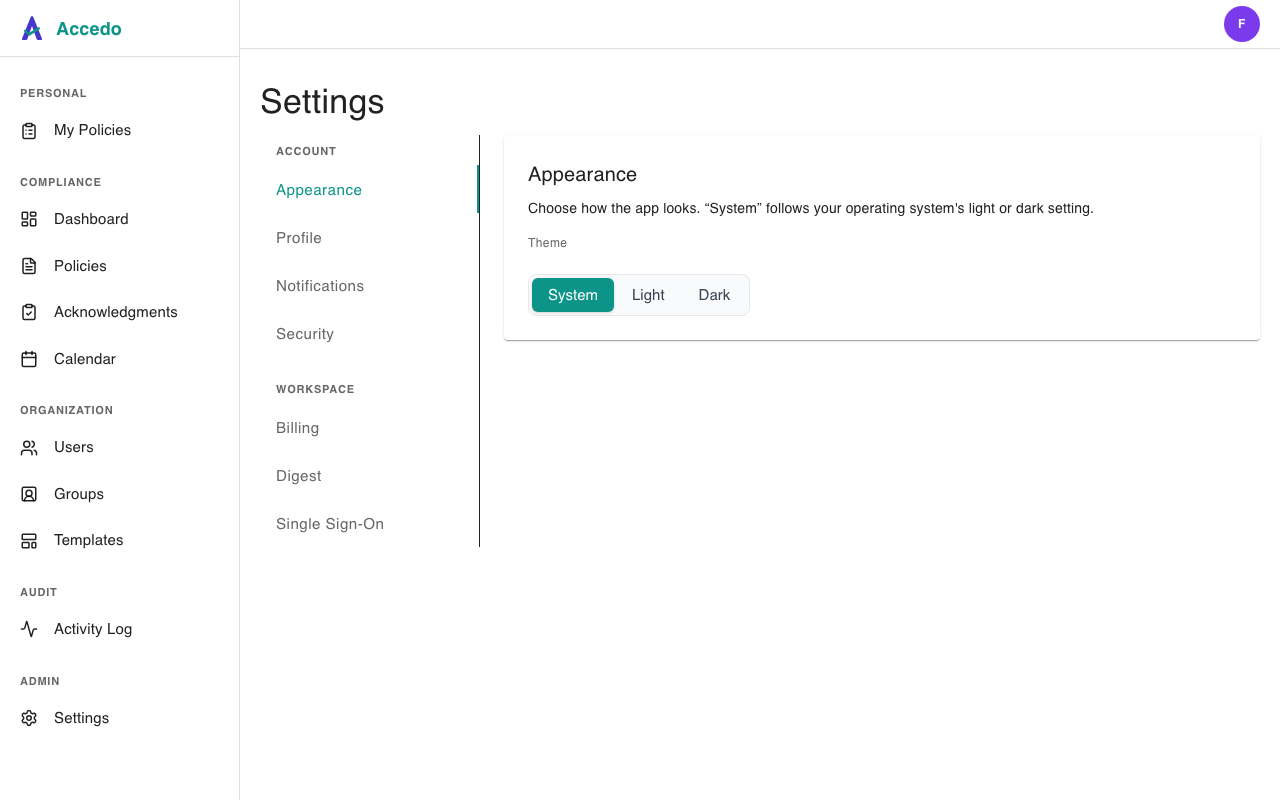
Appearance
Pick how the app looks. System follows your operating system's light or dark setting; Light and Dark override it. The choice is per-device — switching themes on your laptop doesn't change what you see on your phone.
Profile
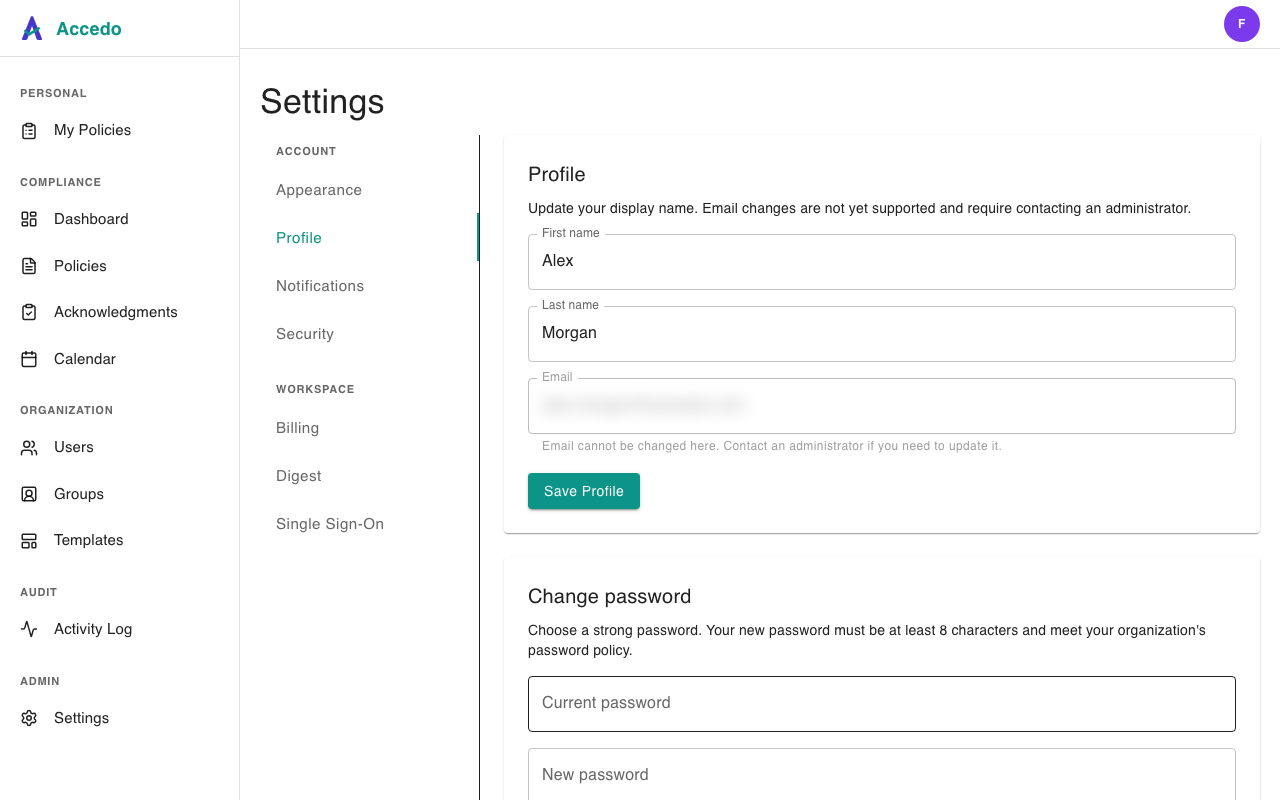
Edit your display name and change your password. First and last name show up wherever Accedo attributes work to you — assignment recipients, the Activity Log, sign-off records. Email is shown but not editable; ask an admin if you need it changed.
The Change password form below the profile fields swaps your current password for a new one in a single step. Your new password has to be at least 8 characters and meet your workspace's password policy. If you forgot your current password, sign out and use the Forgot your password? link on the login page instead.
Notifications
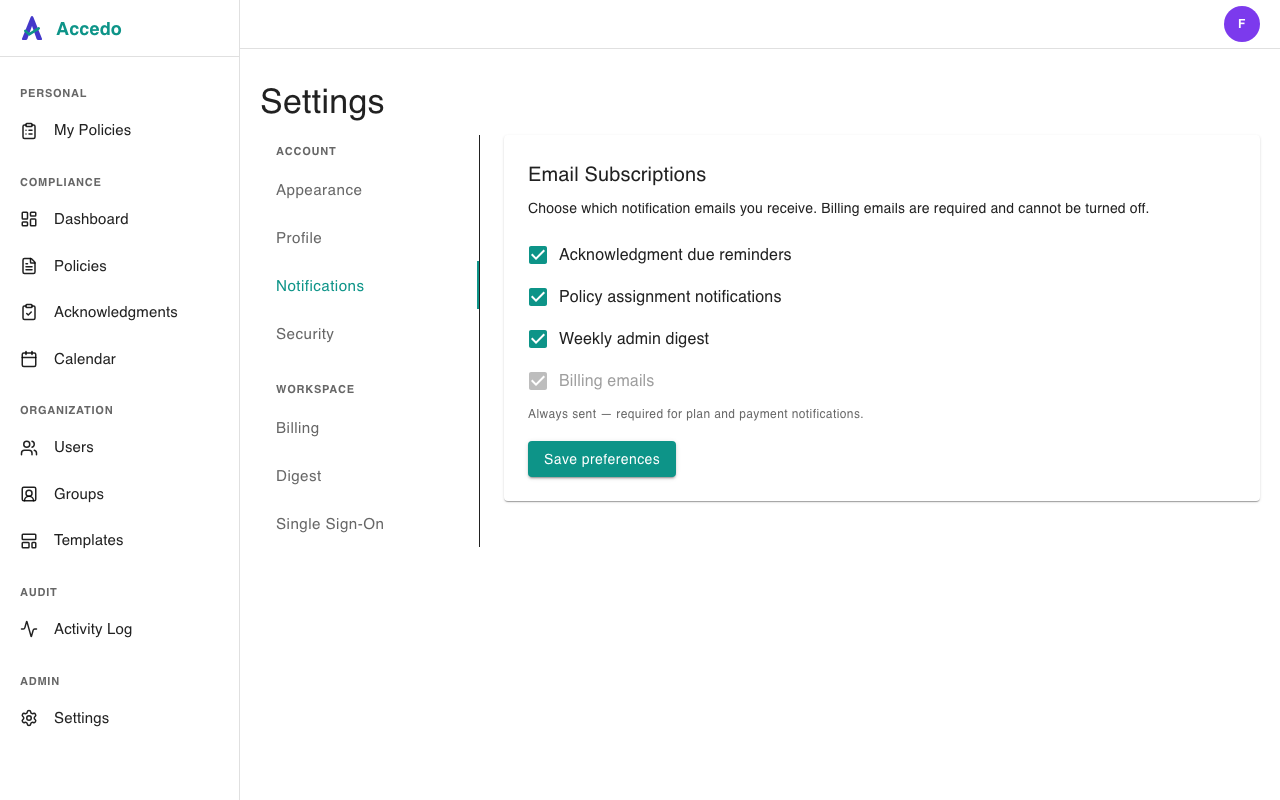
Three opt-out toggles control which transactional emails you receive: Acknowledgment due reminders, Policy assignment notifications, and Weekly admin digest. All three default to on — uncheck any you don't want and click Save preferences. Billing emails appear in the same list but are locked on: plan and payment notifications are required and can't be turned off.
Security
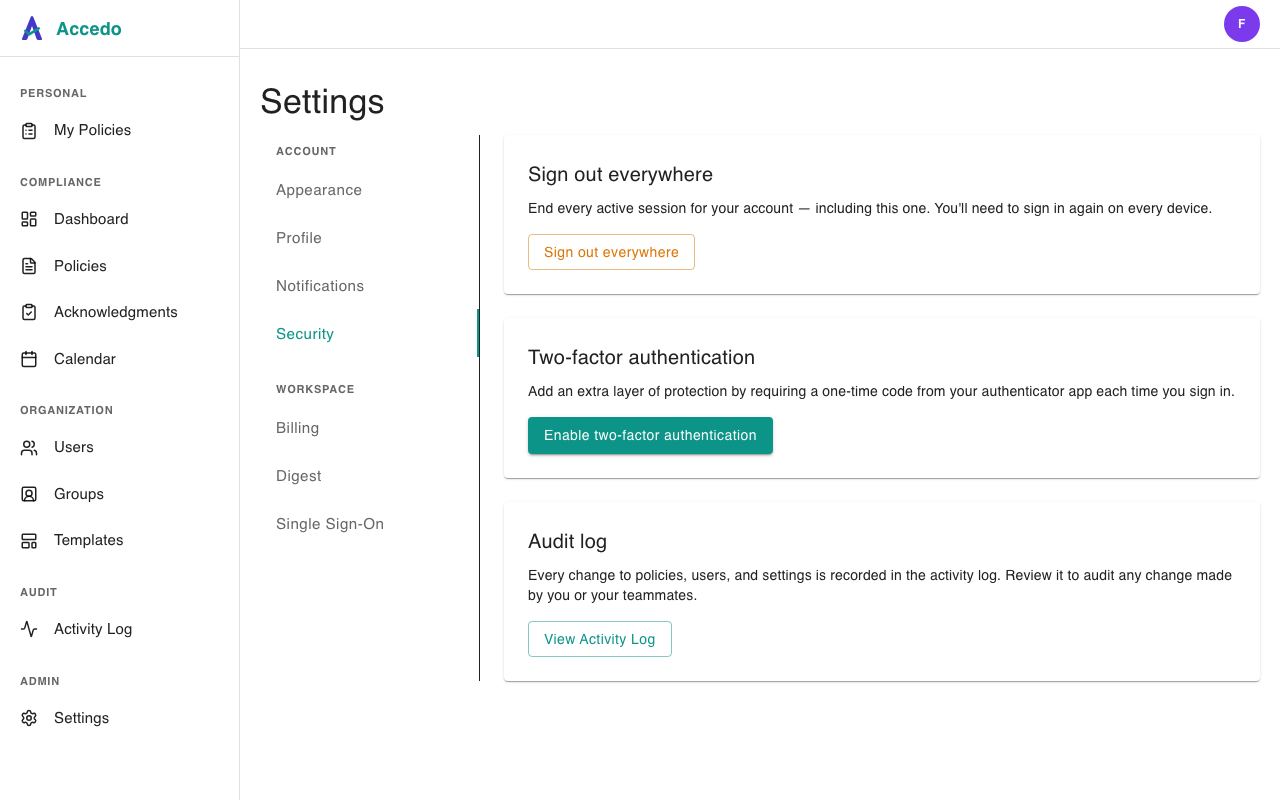
Sign out everywhere ends every active session on every device — including the one you're using right now. Use it if you've signed in from a shared computer or suspect your account has been accessed without permission. You'll need to sign in again afterwards.
Two-factor authentication adds a one-time code from your authenticator app (1Password, Authy, Google Authenticator) on every sign-in. Click Enable two-factor authentication, scan the QR code with your app, type the 6-digit code back to confirm, and you're enrolled. Disable it from the same panel any time.
Audit log jumps to your workspace's Activity Log so you can review changes you or your teammates made.
Workspace settings are different
Below Account in the Settings rail, admins also see a Workspace section with Billing, Digest, and Single Sign-On. Those control the whole workspace and are admin-only — signers don't see them, and even if a signer guesses the URL they're bounced back to the signer portal. See Billing and subscriptions and SSO and SAML for what lives there.
See also
- Users and roles — what each role can do, and how to add or deactivate teammates.
- Billing and subscriptions — admin-only workspace controls for your plan and seats.
- SSO and SAML — admin-only workspace controls for identity-provider sign-in.