Create a policy
Last reviewed: 2026-05-24
Create a policy whenever you have a new document that needs to be acknowledged — a refreshed code of conduct, a new acceptable-use policy, an annual training. Creating a policy is admin-only and is the first step before you can assign signers.
Create a policy
- Open Policies from the sidebar.
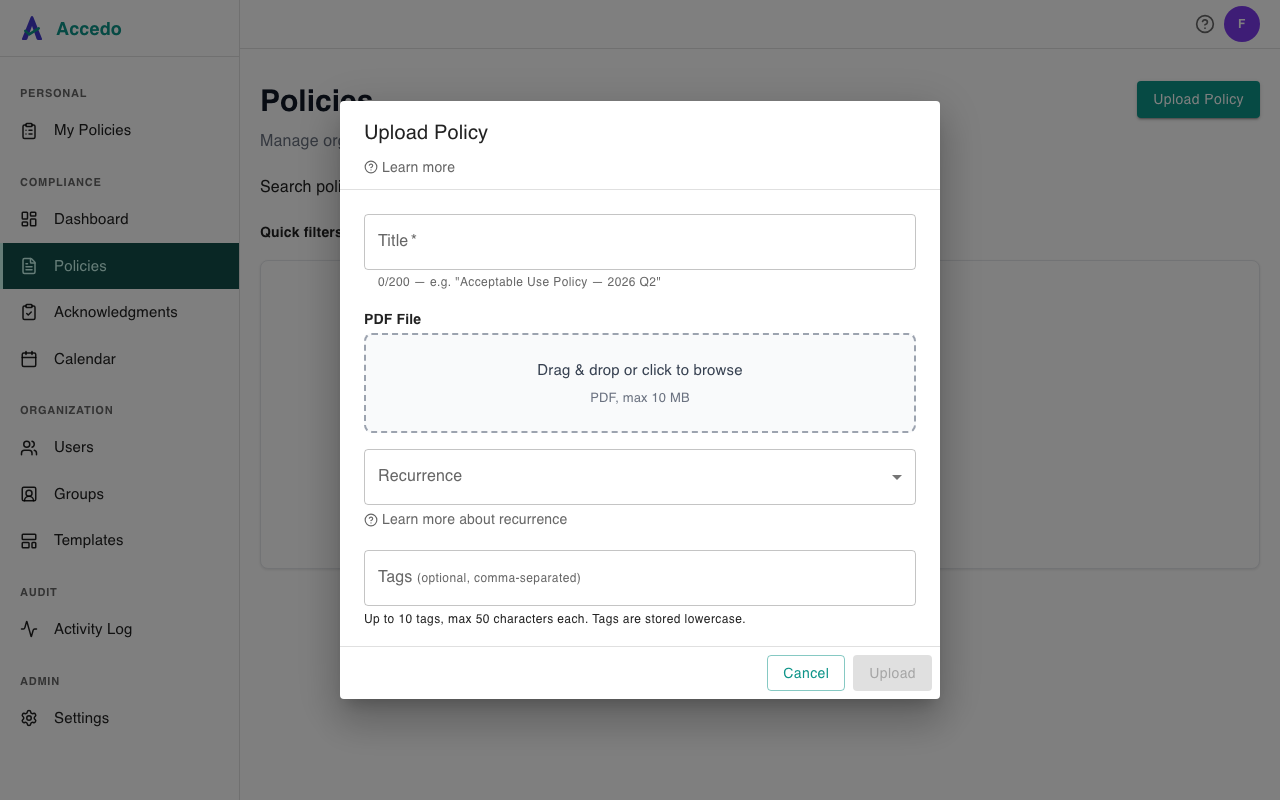
- Click Upload Policy in the page header. (If the button is disabled, you have reached your plan's active-policy limit — archive an existing policy or upgrade your plan to add more.)
- Enter a Title. This is the name your team sees in lists, emails, and the signer portal. Keep it short and descriptive — up to 200 characters. A counter below the field shows how much room is left.
- Add the PDF File. Drag a file onto the drop zone or click to browse. PDFs only, 10 MB maximum.
- Choose a Recurrence: None (one-time), Annual, Quarterly, or Semi-Annual. Pick None if signers only need to acknowledge the document once; pick a recurring schedule if they should re-acknowledge on a cycle. Recurrence is available on Standard and Premium plans — if your plan does not include it, the dropdown is replaced with an upgrade notice. See Recurring acknowledgments for how each schedule works.
- Optionally add Tags — comma-separated labels like
HR, onboarding, 2026. Up to 10 tags, max 50 characters each. Tags are normalized to lowercase and drive the tag-chip filter on the Policies page. - Click Upload. The button stays disabled until both a title and a PDF are present.
What happens after you save
The PDF is stored, the policy is created with status active, and it appears in your Policies list right away. Signers are not notified yet. A newly created policy has no assignments, so no emails go out and no one sees a signing link until you assign it. Open the policy from the list and assign signers to actually put it in front of people — see Assign a policy.
If your plan caps the number of active policies and you are at or above the cap, the upload is rejected with a quota message in the modal that explains the limit and points to your upgrade options.