Billing and subscriptions
Last reviewed: 2026-05-24
Everything billing-related — your plan, your seat count, your payment method, your invoices — lives on a single admin-only page inside the app at Settings → Billing (/settings/billing). The page is split into a Plan & Usage panel that shows your current tier, quotas, and CTAs, and a hand-off to Stripe's customer portal for everything past the initial purchase.
Plans
Accedo has three plans. The full feature comparison and current prices are on the pricing page; below is a quick orientation.
- Free — up to 25 users, 10 active policies, 1 admin, 1 year retention. No payment method, no Stripe customer. Free is the trial: run a real signing flow with your real team and only pay if you outgrow the caps.
- Standard — annual subscription covering up to 200 users, 50 active policies, 5 admins, 7 years retention, plus groups, reminders, analytics, audit log, templates, versioning, and SSO. Above 200 users you buy +50-user packs; the quantity is yours to set on the same subscription.
- Premium — sales-quoted, with unlimited users, policies, and admins; configurable retention; and your own dedicated AWS account for isolation. Not self-serve.
Managing your subscription in the Stripe portal
Standard tenants see a Manage Billing button on the Plan & Usage panel. Clicking it opens a Stripe-hosted customer portal in the same window.
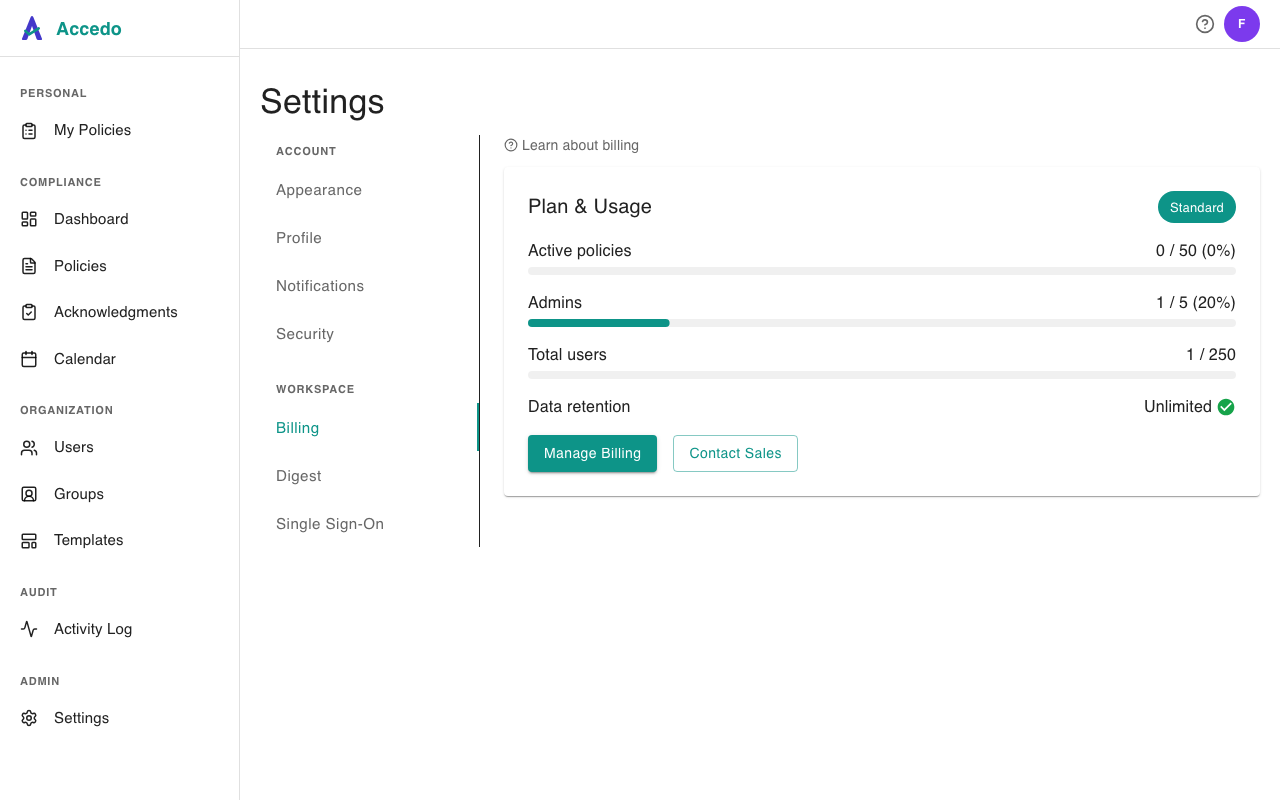
Inside the portal you can:
- Update the payment method on file (card or bank).
- Change the billing email and company details.
- Download every past invoice and receipt.
- Adjust the quantity on your user-pack subscription item.
- Cancel the subscription at the end of the current period.
What the portal does not do: switch tiers (Standard ↔ Premium is sales-led) or create a brand-new subscription. To upgrade from Free to Standard, use the Upgrade Plan button on Plan & Usage — that runs Stripe Checkout, after which Manage Billing takes over for future changes. Portal-driven changes sync back automatically; you don't need to refresh anything by hand.
When the Manage Billing button isn't visible
The button only appears for Standard tenants with an active Stripe customer record. You'll see something else in its place when:
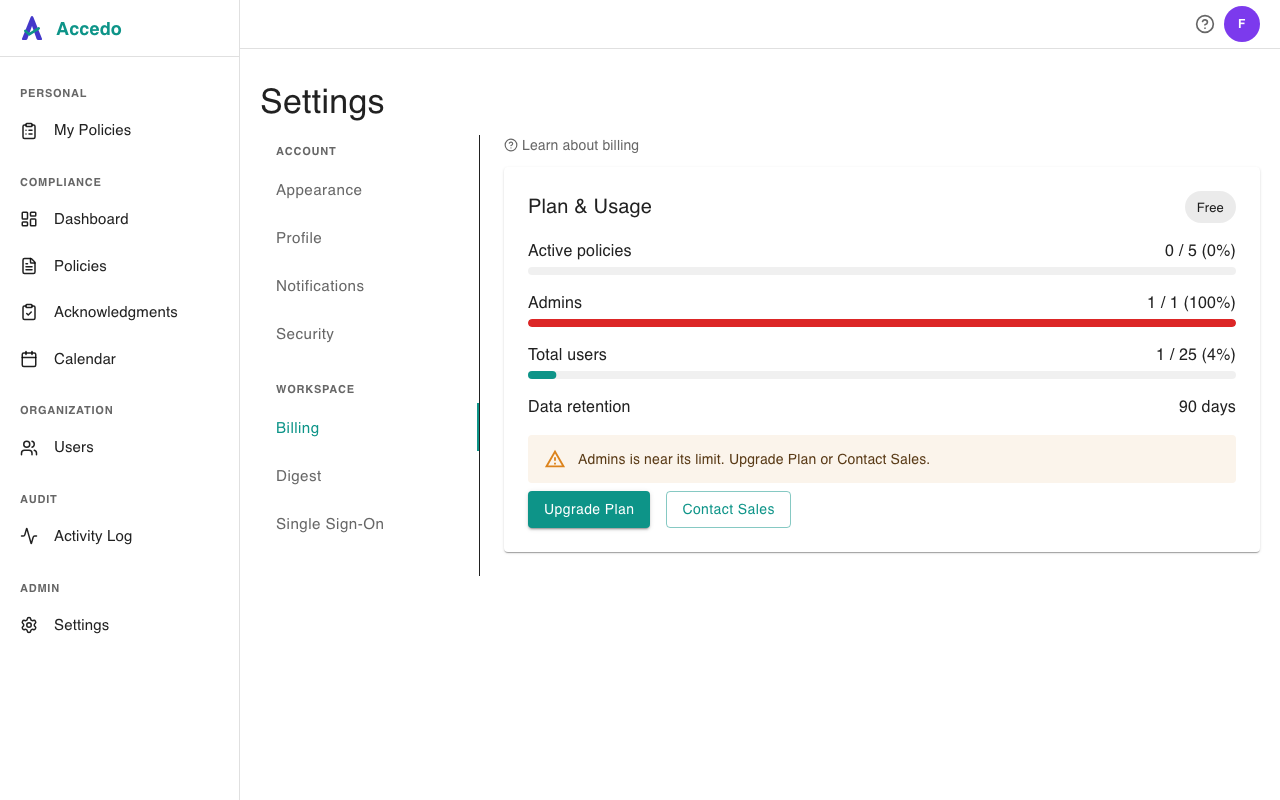
- You're on Free — the panel shows Upgrade Plan instead. Once Checkout completes, Manage Billing replaces it.
- You're on Premium — the panel shows a note to contact your account manager. Premium billing is handled outside the self-serve portal.
- You're a legacy Standard tenant without a Stripe customer — for example, a workspace promoted manually before self-serve billing existed. The button stays hidden so you never hit a dead end; contact support and we'll link your workspace to a Stripe customer.
If you're sure you're on Standard with a paid subscription and the button is still missing, refresh the page once — the panel reads entitlements at load. If it stays missing, that's the legacy case above; get in touch.
What happens when you downgrade — the freeze pattern
Downgrading from a paid plan to Free (or letting a paid subscription lapse) does not delete anything. Accedo follows a freeze-on-downgrade pattern: features that the lower tier does not include become read-only but stay visible — your existing groups, templates, recurring policies, SSO configuration, and SCIM tokens are all preserved exactly as they were on the higher tier. They simply stop accepting new actions until you re-upgrade.
Concretely, after a downgrade:
- Visible but frozen. The Groups page, Templates page, recurrence controls inside the policy editor, and the SSO + SCIM panels all still render. Each one shows a dimmed overlay with the message This feature requires an upgrade. and an Upgrade Plan button. Existing rows (groups, templates, tokens) are listed but their action buttons are disabled.
- Existing data is preserved. Groups keep their members and policy attachments. Templates keep their policy lists. Recurring policies keep their cadence (but the rollover stops firing while you are on Free — see below). SCIM tokens remain in the table; the IdP requests stop succeeding because the tenant is no longer entitled, but the rows are not deleted.
- In-flight work continues. Pending acknowledgments stay pending and signers can still complete them; signed acknowledgments stay signed. Magic links that were already sent still work.
- Recurrence pauses. Recurring rollovers (annual / quarterly / semi-annual) do not fire while the tenant is on Free; the cadence resumes on re-upgrade. Already-rolled-over assignments are unaffected.
- SSO and SCIM stop accepting new requests. SAML sign-in falls back to the password form for users who had previously signed in via SSO; SCIM endpoints return 403. The saved IdP metadata and SCIM tokens remain on file so the original setup is one upgrade away from working again.
If you cap out of the Free quotas (more than 25 users, more than 10 active policies, more than 1 admin) during the freeze, the over-limit rows are not auto-deleted — they remain in place and read-only. New invitations, new policies, and new admin promotions are blocked until you free up room or upgrade.
The recovery path is intentionally lossless: re-subscribe to Standard, and within a few seconds the overlays disappear and every previously-frozen feature is live again. No re-configuration of SSO, no re-creating templates or groups, no re-uploading recurrence schedules.