Assign a policy
Last reviewed: 2026-05-24
Assigning is admin-only and is the step that actually puts a policy in front of your team. Until you assign signers, a newly uploaded policy just sits in the library — no emails go out, no signing links exist. You can only assign a policy that is already active; if you have not created one yet, start at Create a policy.
Assign a policy
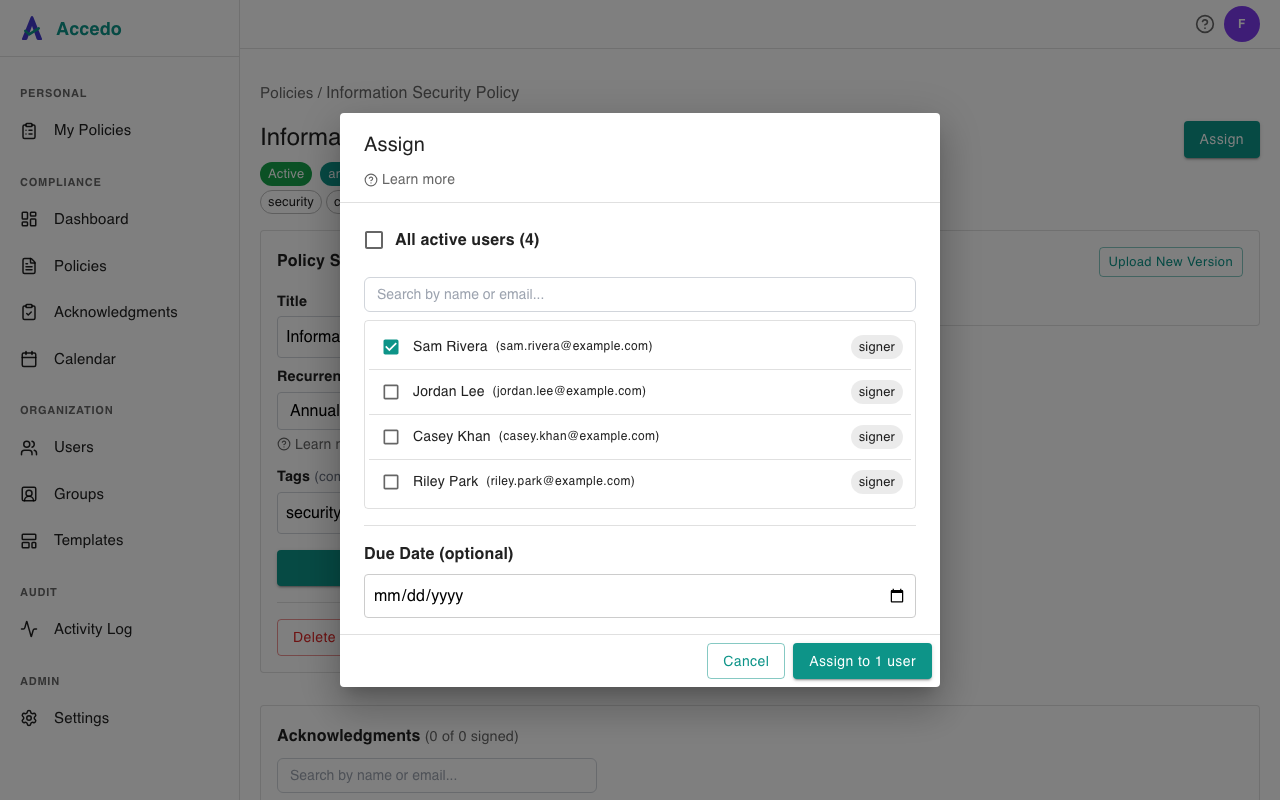
- Open the policy. Two entry points: click Assign Users on the policy's card on the Policies page, or open the policy and click Assign in the page header.
- The Assign modal loads your full active user list. Pick who should sign:
- All active users — top checkbox; assigns every non-deactivated user in the workspace.
- Groups (if enabled on your plan) — tick one or more groups. Group selections are durable: new users added to the group later are auto-assigned this policy.
- Individual users — search by name or email, then tick each user you want. Users already assigned for the current acknowledgment period are excluded from the list, so you can re-open the modal to top up new hires without re-assigning everyone.
- Optionally set a Due Date (date picker, today or later). Leave blank for no deadline.
- Click Assign to N users. The button shows Assigning… while it runs and confirms with Signing links created for N users.
What signers receive
The moment the assignment is created, Accedo emails each signer a signing-request message containing the policy title and a unique magic link. Clicking the link drops them directly into the signing page — no password, no separate login. See Sign-off and magic links for what they see next. Each link is bound to one signer and one assignment, and expires after its built-in window — do not forward them.
Setting a due date
Due dates are optional and apply to every signer in this assignment batch. A row stays pending until its due date, then flips to overdue — the magic link still works, but the row surfaces in your Overdue filter and on the signer's My Policies with a red chip. If you do not set a due date, the assignment stays pending indefinitely until the signer signs or declines.